---
title: "Manage tasks on a project board"
description: "Create a task, name its owner, track progress, and review the result in one place."
---
A task keeps a piece of work together: its purpose, owner, status, files, and the conversation about the result. Use the project board for work a person will do as well as work you delegate to an agent. Every member who can open the project can create tasks in it; [who can change a task](https://docs.tale.dev/platform/projects/tasks#who-can-create-and-change-tasks) depends on your role and on whether the task is yours. The project must be active: an archived project is read-only until an administrator restores it.
## Create a task with a clear result
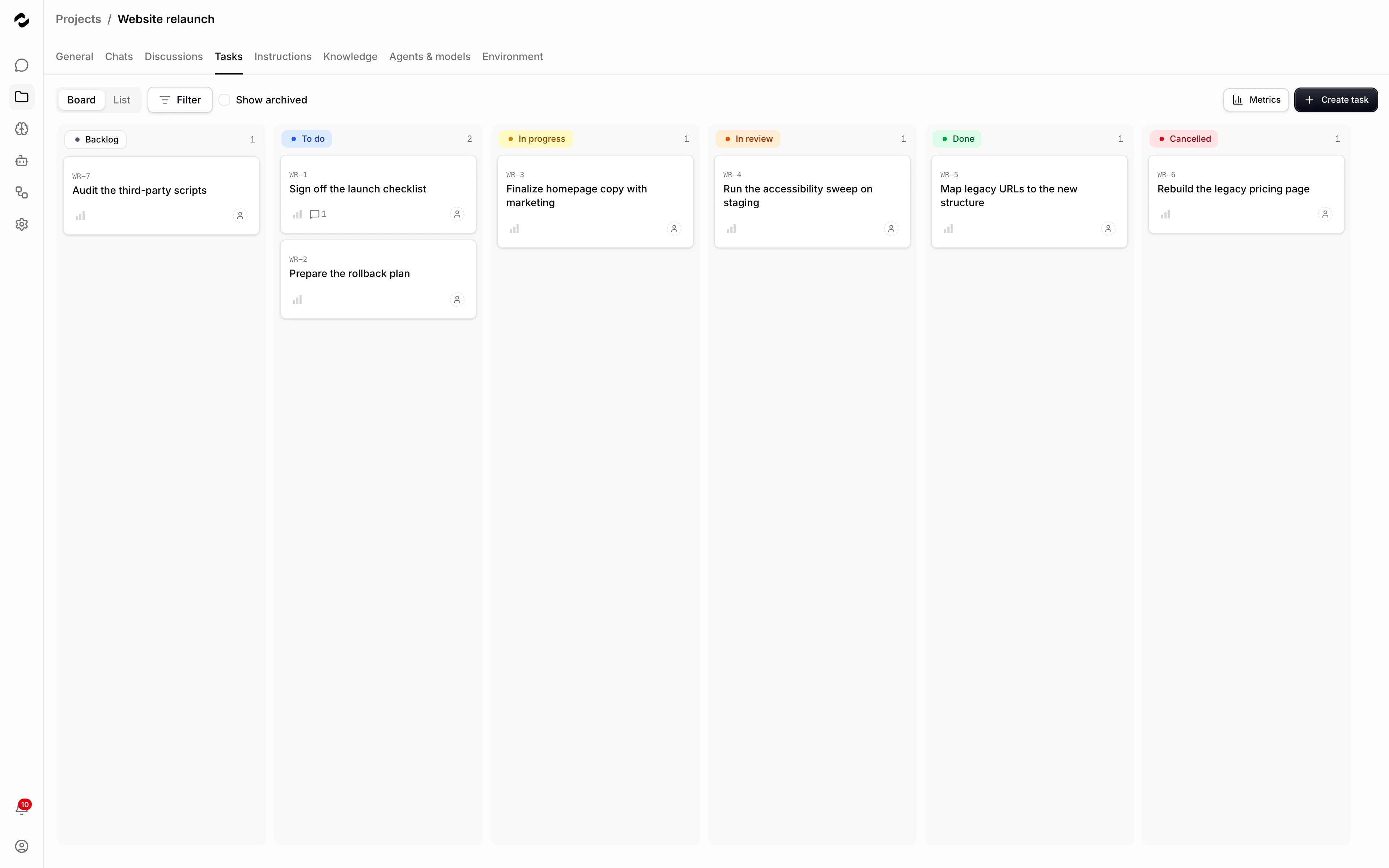
1. Open the project’s **Tasks** tab and click **Create task**.
2. Write a **Title** that names the result, such as “Review the launch brief”.
3. Use **Description** to explain what is needed and how the result will be checked. Add supporting files under **Attachments** when the work depends on them.
4. Choose **Status**, **Priority**, and an **Assignee** as needed. A new task starts in **To do** with **Medium** priority and today as its **Start date**; use **Backlog** for a proposal the team has not committed to, and clear the start date when there is none yet. A start date after the **Due date** is named under the dates, and **Create task** waits until you fix it.
5. Click **Create task**, or press **⌘+Enter** (**Ctrl+Enter** on Windows and Linux) in the title or the description; **Enter** in the title moves on to the description. A message confirms the new task, with **Open** to go to it. When an agent is the **Assignee**, **Create and start agent** creates the task and starts the agent in one step.
To create several tasks in a row, switch on **Create another** at the bottom left of the dialog before you create. The dialog then stays open: the title, description and attachments are cleared for the next task, while its status, priority, assignee, dates, repeat and labels stay as you set them. Tale remembers the switch in this browser.
On **Board**, each column can create in its own status: the **+** beside the column's name opens the same dialog with that status, and **Add task** at the foot of the column takes just a title. Type it and press **Enter** to add the task to that column with **Medium** priority and today as its start date, and with the priority or assignee the board is filtered to; the field stays open for the next one, and **Esc** closes it.
A title can have up to 200 characters and a description up to 20,000; most emoji count as 2. A longer description, pasted in or left on a task by an earlier import, is not cut: the field names the limit and counts the length, and **Create task** or **Save** stays unavailable until you shorten it.
Tale gives the task an identifier built from the project key, such as `WEB-1`. Use that identifier when referring to the work so similarly named tasks remain distinguishable.
A conversation can start a task too: **Create task** in the chat's header opens the same dialog with your request, the chat's files, and a link back to it, and the chat then follows the task above its message box. See [Turn a chat into a task](https://docs.tale.dev/platform/chat/basics#create-task-from-chat).
An automation built for tasks can also offer a template in **Create task**: its name then appears beside **Blank task** above the form. Choose it, enter the name the automation asks for, such as a quarter, and click **Create task**; the automation becomes the task's assignee. If a task already exists for that name, Tale opens it instead of creating a second one and says **A task for this subject already exists.** A Member can read and comment on it there, but change it only if it's theirs. Templates that set up folders or settings files in the project are offered to Editors and higher roles only.
A useful description states the input, the requested output, and a check for completion. For example: “Compare the review date in the attached brief with the meeting notes. Comment with any mismatch and cite both files.”
## Who can create and change tasks
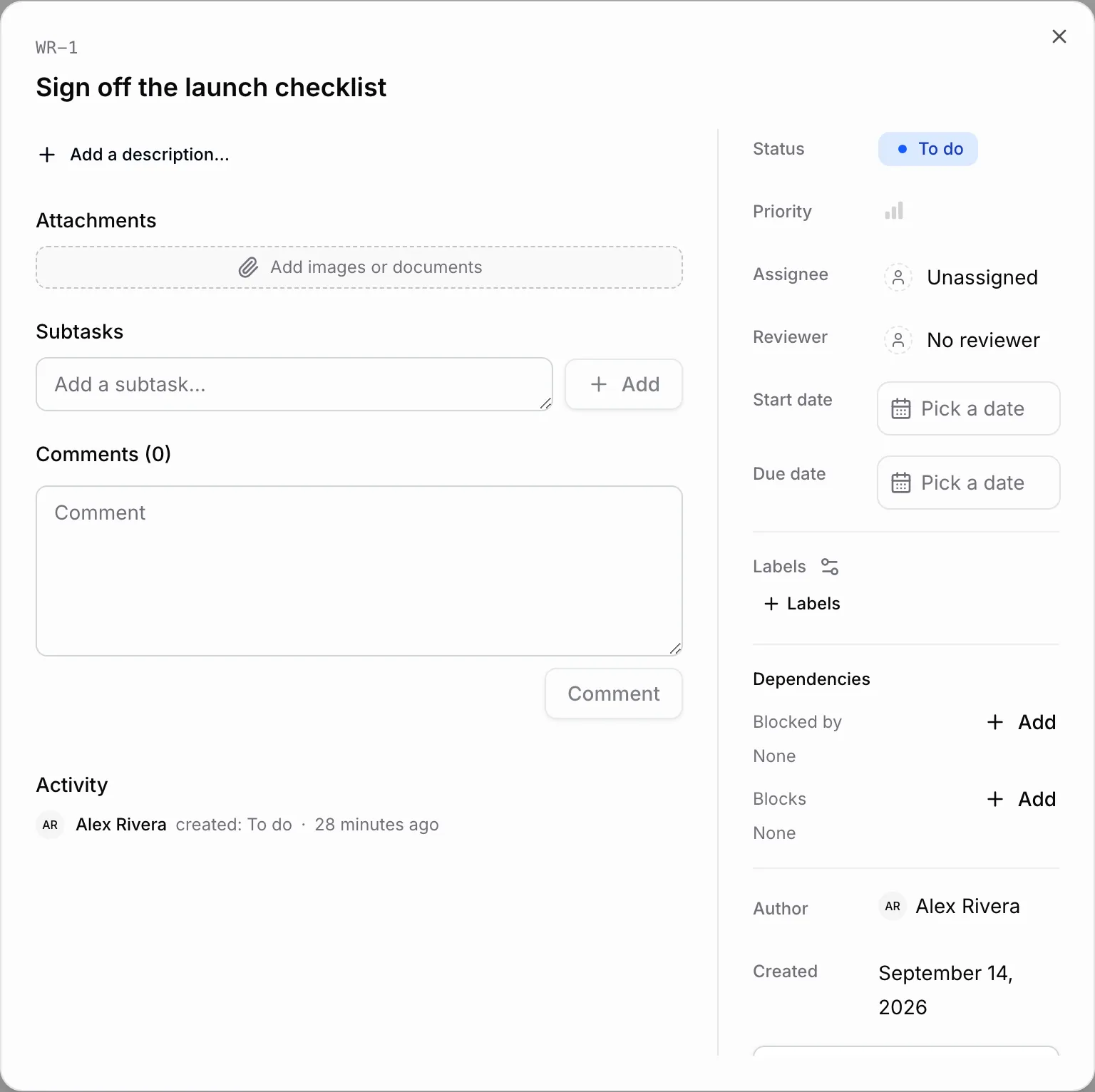
Every member who can open a project can create tasks in it. Editors and higher roles can change every task in the project. On tasks they created or that are assigned to them, a Member can:
- Edit the title, description, attachments, subtasks, dates, priority, labels, and repeat.
- Assign the task to themselves, to another member of the project, to one of its agents, or to an automation built for tasks.
- Start, guide, or stop the agent, including with an @mention in a comment.
- Move the status, including accepting a result by moving the task to **Done**.
- Archive the task, or restore it.
The same goes for the subtasks under such a task, whoever added them, for example an agent that split up the work, so they never keep the Member from closing their task. Changing **Reviewer** requires project edit access, including on a task you created or own.
On other people's tasks, a Member reads and comments; mentioning an agent there leaves an ordinary mention that starts nothing. Everyone can edit and delete their own comments on any task they can read, and Owners and Admins can also delete other people's comments.
An archived task can be read but not changed. Until someone restores it, nobody can comment on it, edit or delete its comments, or change its dependencies; a task it blocks can still remove it under **Blocked by**. An agent run that was already working on the task still posts its result there.
Handing a task that was assigned to you to someone else, a person or an agent, also hands over the right to change it, unless you created the task. A run you started still answers to you, though: when your @mention hands the task to an agent, you can guide that run with further mentions and stop it with **Cancel run** until it ends.
A dependency belongs to the task it blocks, so a Member records dependencies for their own tasks only: under **Blocked by** on a task of theirs, or under **Blocks** on any task they can open, picking one of their tasks as the blocked one. The project's settings, agents, files, and label catalog stay with Editors and higher roles; a Member picks from the labels the project already has. Only Owners and Admins can delete a task; everyone else who can change it archives it instead.
Automations follow a narrower rule, because an automation acts as itself, with the organization's connector credentials, not as the person who starts it. A Member can hand a task only to an automation built for tasks, the ones listed under **Automations** in **Assignee**, or to the automation that already owns the task, and those are also the only ones they can start or ask for changes. Every other automation stays with Editors and higher roles.
### Agent runs a Member starts
A run started by someone who can't edit the project, such as a Member, keeps to its task:
- Its platform tools change only that task and the subtasks under it: the agent creates new tasks only as subtasks of that task, uses only labels the project already has, and can't sync items from other systems into the project.
- It can't save documents to the project or write knowledge entries. The files it produces still arrive on the task under **Deliverables**.
- The run gets neither the agent's **Secrets** nor the token of an equipped GitHub connection. The agent learns which credentials were held back and is asked to say so in its report when the work needs them; an Editor or higher then has to start it. Connectors equipped on the agent keep working and act for the person who started the run.
- It works in a worker kept for that person's runs with this agent, with a workspace of its own: files from runs that Editors started aren't there, and what this run leaves behind never reaches those runs. The person gets one such worker for each of their runs with the agent that work at the same time. Their later runs with the agent find the workspace again, until Tale deletes it: when the person leaves the organization or the agent is deleted, or once no run has used it for the number of days the organization sets under [**Days without use**](https://docs.tale.dev/platform/admin/sandboxes#delete-unused-workspaces-automatically).
A [standard agent run without a worker](https://docs.tale.dev/platform/projects/project-agents#standard-agent-runs) has no platform tools to change tasks at all: it reads what the person who started it can read, makes files, and reports to its task.
The run can still read the project's tasks and knowledge, and it keeps these limits when an Editor guides it later. A run that an Editor or higher starts has the agent's full equipment, on any task. A Member's comment can change that: when the agent's runtime restarts to take in the comment, as [every runtime except Claude Code](https://docs.tale.dev/platform/agents/harnesses) does, the rest of the run counts as the Member's, with the same limits on its tools and credentials.
## Choose an owner and a reviewer
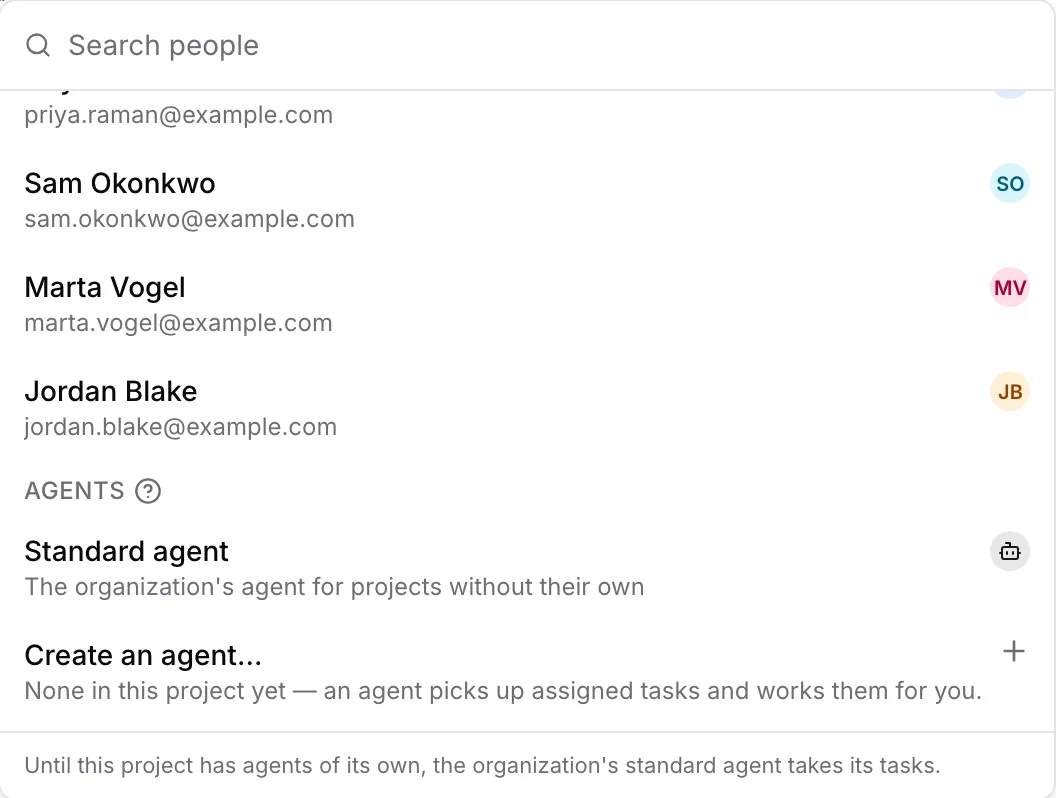
**Assignee** identifies who does the work: a person, a project agent, or an automation available to the project. **Reviewer** chooses a person, a project agent, or the **Project default** for checking the result. Changing that choice requires project edit access. A human reviewer also needs project edit access; an agent reviewer belongs to this project and must be different from the agent that produced the result.
Assigning an agent and starting its run are separate choices. After assigning it, click **Start agent**, or move the task to **In progress**. Read [Task automation](https://docs.tale.dev/platform/projects/task-automation) before starting work that can use connected services or produce files.
If the project has no agent of its own, **Assignee** offers **Standard agent**, the organization's agent for such projects. Choosing it sets the agent up in the project and assigns it the task; [The standard agent](https://docs.tale.dev/platform/projects/project-agents#standard-agent) explains how it works. Editors and higher roles can choose **Create an agent…** instead: **New agent** opens over the task, and the agent you create is assigned to it. When the standard agent can't run for them, for example because an admin has turned it off, Members are told to ask an Editor or Admin to add an agent on the project's **Agents** tab.
For a review assigned to a person, the named reviewer receives the request without being the only person allowed to accept it. Anyone else who can change the task can also accept the result: an Editor or higher, or the Member the task belongs to. When your organization requires an independent reviewer, the person who started the agent run under review cannot accept its result; when no agent run produced the result, the task's creator cannot. Required human competences still apply. A review assigned to an agent needs that agent's decision, or an explicit transfer to an eligible person before a human can approve it.
If the organization’s review policy cannot be read or is invalid, human approval is refused, including after a review is transferred from an agent to a person. An organization administrator must restore valid policy configuration before approval can succeed. Asking for changes or withdrawing a review keeps its existing behavior.
### Set a project review default {#review-default}
On the project's **General** tab, open **Task reviews** and choose **Default reviewer**, then save the project changes. The initial **Person** choice uses the task creator, then the project creator, if they can edit the project. Choose an independent project agent to route new reviews to it. This setting neither starts the agent nor grants its review permission; [Set up an independent reviewer](https://docs.tale.dev/platform/projects/task-automation#agent-review) covers those steps.
Tasks with **Project default** follow this choice when a new review starts. A task with an explicitly named person or agent keeps that choice. Reviews already waiting retain their recorded reviewer even if the project default changes. If someone changes the default while you are editing, discard the stale draft and choose again.
An agent default applies only when a native project-agent run produced the result and the organization does not require human independence or competence records. A person or automation submitting work without such a run uses the human review chain. Saving an agent choice requires its task review permission; a task cannot select its own implementation agent. A captured review never changes owner automatically after a grant, assignment or policy changes.
### Transfer a pending review {#transfer-review}
Open the task and read **Current review** below **Reviewer**: it names who owns the waiting review, which can differ from the current project default. Choosing another reviewer also transfers that pending review, without changing the assignee or starting a run. Choose **Project default** to hand it to the project's current default. If the reviewer or result changed since the task was read, the transfer is refused; check the refreshed review before choosing again.
An agent can review only a completed project-agent result from a different implementation agent. Assigning the task to someone else keeps the original result's producer but blocks the pending agent decision. To keep the new assignment and review that result, explicitly transfer the review to an eligible person; the organization's review policy still applies.
A live run or open question can prevent a transfer to an agent. For work without a supported completed agent run, or a review requiring human independence or competence records, choose an eligible person. If an agent is unavailable or lacks the review permission, the task shows that reason; it does not silently send the review to you.
The current review also explains self-review, changed implementation ownership, and unavailable policy. Restore the indicated condition or transfer it explicitly; settlement still records the result. A repeated task retains an explicit agent reviewer even if that agent was deleted or lost its grant, so repair that choice instead of silently inheriting a different reviewer.
## Use statuses to communicate progress
Change **Status** in the task details, or drag a card to another column on **Board**. The status picker is the keyboard-accessible alternative to dragging. **Done** and **Cancelled** fold to a narrow rail with the fold icon beside their name, so finished work stays out of the way: the rail keeps the column's count, opens again when you select it, and still takes a card you drag onto it. Each board remembers its folded columns in this browser.
| Status | Meaning |
| --- | --- |
| **Backlog** | Proposed work that has not been committed to. |
| **To do** | Work ready to be picked up. |
| **In progress** | Work is underway. Moving an agent-owned task here starts its run. |
| **In review** | A result is waiting for its human or agent reviewer. |
| **Done** | The completed work has been accepted. |
| **Cancelled** | The work is no longer going ahead. |
For an agent-owned task, changing status can start or cancel execution. Read the action hint before moving it. An agent reports back at **In review**; it cannot mark its own work **Done**.
### Follow a connected source workflow
A task connected to a source that owns its business workflow can show **Source workflow** in its details. Choose the source's action, complete its fields, and select **Send request**. The source checks your identity, role and transition rules before updating the task. Provide the required verification note, closure evidence or reopening reason in this form; a board column alone cannot express those details or distinguish two source stages that both appear as **In review**.
While the source validates a request, the task shows its pending state and prevents a second submission. Its accepted result or refusal explanation remains visible after a reload. A refusal keeps the source's accepted state; read the explanation before submitting another action. A source may offer a guarded reopening action on an archived record. These actions require a verified, active account and permission to work the task.
## Keep decisions with the work
Open the task to add a description, attachments, dates, labels, subtasks, or comments. Use comments for questions, decisions, and feedback that future reviewers need to understand. A task reads the same in the board's dialog and on its own page: the brief first, then the discussion as one conversation with the task's history between the comments, and the comment box at the bottom. On a larger screen it opens at the latest message; scroll up for the brief. On a phone the dialog scrolls as one column from the brief: the conversation, then the comment box, then the details. [Open your tasks from Home](https://docs.tale.dev/platform/projects/tasks#open-your-tasks-from-home) describes each part.
Typing `@` in a comment opens the mention picker. A mention of an assigned agent is an instruction: it can steer a running agent or start another run when the agent is idle. A plain comment records the discussion without requesting that agent action.
The picker finds people and agents by name or by handle; an agent's handle, such as `@my-opus-agent-3` for “My Opus Agent #3”, appears beside it. The field and the posted comment show the name of whoever you mention. Tale saves whom a mention names rather than the words you typed, so after a rename the mention shows the new name. **Backspace** right after a name removes the whole mention, and typing inside a name turns it into plain text. A mention inside code stays text and notifies no one.
Mentions in the task description work the same way when you save the task: the people you name are notified, and a named agent is steered or starts a run as described above. A run it starts moves the task to **In progress**, whichever column you created it in. When you edit the description later, only the mentions you add take effect. Rewording the text around an existing mention notifies no one again. The agent reads the description as it is when its run starts, so an edit you make while the run is still waiting is the version it works from.
Use **Subtasks** to split work that has separately checkable results. A subtask names its parent at the top of its details (**Part of …**); click it to go back up. While any of its subtasks is still open, a parent task cannot move to **Done** or **Cancelled**; every other status stays available, **To do** included. **Dependencies** shows which tasks block this task and which it blocks; circular dependencies are refused.
When you change a field, the line it adds to the task's conversation shows its value before and after. A field you clear shows what is left, such as **No due date** or **Unassigned**, rather than its old value alone. Titles, descriptions, labels, and file names appear exactly as they were written, even when the text is a status name such as `done`. Statuses, priorities, dates, and the words for an empty field appear in your language.
## Repeat a task
Give a task a repeat when the same work comes back on a schedule, such as a weekly status report. Each time the task closes, the next one appears in **To do**, due on the next day the repeat names.
Click **Repeat** below **Due date**, in the task's details or in **Create task**, and choose how the task repeats. A choice is saved as soon as you click it:
- **Never**
- **Daily**
- **Every weekday**, Monday to Friday
- **Weekly on …**, **Monthly on day …**, or **Yearly on …**, which take their day from the due date; a task without one uses its start date if that is still ahead, or else today
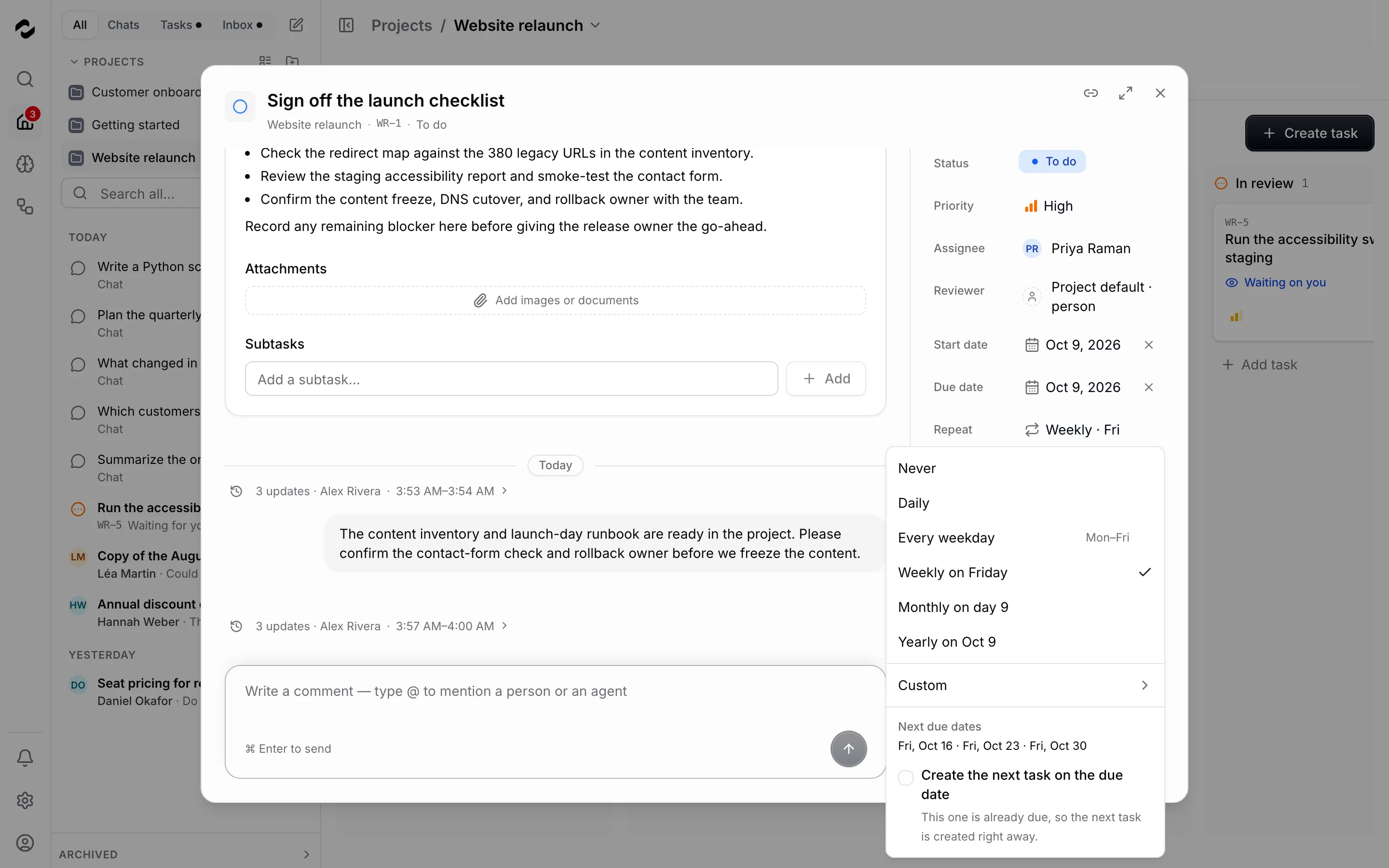
**Next due dates** shows when the next three tasks will be due. A task without a due date gets one when you choose a repeat: the first matching day from today, or from its start date when that is later. A monthly repeat on the 31st falls on the last day of shorter months. If you clear the due date of a task that already repeats, the repeat stays: the next task then comes when this one closes, due on the first matching day after that, and **Repeat** says so when you open it. Any change to the repeat gives the task a due date again.
If the dates exceed the supported calendar range, the preview explains this. Choose an earlier start or due date before setting the repeat.
### Set a custom repeat
For any other schedule, choose **Custom** in the same list. Pick **Day**, **Week**, **Month**, or **Year**, set how often the task comes back, and choose the weekdays, the day of the month, or the date, such as every 2 weeks on Tuesday and Thursday. **Next due dates** follows each change. Click **Save** to keep the repeat. **Cancel**, **Escape**, or a click outside the list discards your changes; the back arrow returns to the list and keeps them.
### Create the next task on the due date
Normally, the next task appears when you move this one to **Done** or **Cancelled**. When the work has to come back on time even if the last round isn't finished, open **Repeat** on a repeating task, select **Create the next task on the due date** below the dates, and click **Save**. The next task then appears at the start of the due date, midnight in the time zone of whoever set up the repeat, even while this task is still open. If the task is already due, the next one appears within a few minutes, and closing the task before its due date creates the next one at once. **System** appears as its creator in the task's activity. **Repeat** shows a calendar icon, and the tooltip of the repeat icon on **Board** and **List** ends in **next task on the due date**.
Open tasks no longer hold such a series back, so they can pile up when nobody closes them. A series never has more than 10 open tasks: the next one waits until someone closes one of them. Changing the repeat, or choosing **Never** and then a repeat again, still counts the tasks that remain open in the series.
### What the next task brings back
The next task has its own identifier and starts in **To do**. It keeps the title, description, priority, labels, attachments, assignee, reviewer, the people watching the task, and the repeat. Its subtasks come back with it, each in **To do** with its dates moved by the same step, along with the dependencies between them. Comments, dependencies on other tasks, archived subtasks, and the files an agent produced stay with the earlier task. People carry over only while they still have access: the assignee while they can still be assigned, the reviewer while they can still edit the project, and watchers while they can still see it. Whoever stopped watching the task doesn't watch the next one either, even if they created it.
The next task is due on the first day the repeat names after the earlier task's due date, and a start date keeps the same number of days before it. That due date is never in the past: close a task late, and the next one is due today or on the next matching day, so missed dates don't pile up as overdue tasks.
Under **Repeat**, the earlier task links to the next one, such as **Next task: WEB-13**; reopening the earlier task and closing it again creates no second one. On **Board** and **List**, a repeat icon marks the task that currently carries the series, and its tooltip names the repeat.
### Stop a series
When you close a repeating task, the message **Next task created** tells you when the next one is due and offers **Stop repeating**. The same button stays under **Repeat** on the task that created the next one, beside **Next task**, while the next task still repeats. If nobody has touched the next task yet (it is still in **To do**, unchanged, with no comments or agent runs), it is removed together with its subtasks. Otherwise it stays and no longer repeats. Either way, the series ends: on the task you stopped it from, **Repeat** reads **Never**, and its tooltip says **This series has stopped.** If you used the button under **Repeat**, the focus then moves to **Repeat**. You can also set **Repeat** to **Never** on the latest task of the series.
**Stop repeating** reaches only tasks you can change: the one you use it on, and the later tasks of the series that you can change too. Earlier tasks keep showing their repeat. If a later task belongs to someone else by now, for example after it was reassigned, it keeps its repeat and the series goes on from it; no next task is removed then.
Deleting the latest task of a series ends the series. The task before it doesn't create another one, even if you reopen it and close it again: it shows no repeat icon, and its **Repeat** stays locked, with the tooltip **Its next task was deleted. This task cannot repeat again.** Deleting an earlier task leaves the series going on from the latest one.
### When the repeat can't be changed
Point at **Repeat**, or move the keyboard focus to it, to read why it is locked:
- A task that already created its next task has handed the series on and doesn't repeat again, even if you reopen it. While the series goes on, change the repeat on the next task, which the **Next task** link opens. Once the series has stopped or its next task was deleted, **Repeat** says so.
- Any other task in **Done** or **Cancelled** keeps the repeat it closed with. Reopen it to change the repeat.
- A subtask has no repeat of its own. While its parent repeats, **Repeat** reads **With WEB-3**, for example, and each next task of the parent brings a fresh copy of the subtask. An archived subtask has no **Repeat**: it doesn't come back. Work that follows its own schedule needs a task of its own.
- A task an automation owns doesn't repeat, and assigning a repeating task to an automation ends its series.
- In **Create task**, **Repeat** reads **Never** while **Status** is **Done** or **Cancelled**, or while an automation is the assignee.
## Review the result before closing
For a human-owned task, compare the work with the description’s completion check. For agent work, read the report in the task’s comments and inspect any produced files. A finished run records that the agent has stopped working. Check the recorded review decision to see whether the result was accepted.
Move the task to **Done** when the result meets the requirement. If an agent needs to revise it, add specific feedback and mention that agent. [Task automation](https://docs.tale.dev/platform/projects/task-automation) explains retries, rework, and cancellation.
## Open your tasks from Home
[Home](https://docs.tale.dev/platform#home) lists the open tasks assigned to you and those waiting for your review, from every project you can read; **Tasks** above the list shows only them. A task you open there appears as a page of its own beside the Home panel, laid out like the board's dialog:
- The brief comes first as a card: the description, attachments, and subtasks.
- The discussion follows like a conversation, oldest first under day labels that stay at the top while you scroll through their day. Your own comments sit on the right, as in a chat; everyone else's, people and agents, read on the left under their name, with an **Agent** label for an agent and the time. A long comment, such as an agent's report, shows its beginning with **Read more** to open the rest in place and **Show less** to fold it again.
- The task's history sits between the comments as short lines, such as status changes, assignments, and agent runs. Three or more updates in a row fold into one line, such as **5 updates**, with who made them; select it to see each one. Agent runs fold apart from them: two or more in a row become one line, such as **3 agent runs**, with the time they span. Each run has **View**, which opens its status, duration, tool actions, and cost, with the agent's log, right under the run; **Hide** closes it.
- The comment box sits at the bottom. Send with **⌘+Enter** or **Ctrl+Enter**, or with the round send button; **Enter** alone starts a new line. Type `@` to mention an agent or a person, with the same effect as in the board's dialog. Text you have not sent stays in the box for that task, here and in the board's dialog, and the task's row in Home shows **Draft** while you work elsewhere.
- **Details** beside the discussion holds the status, priority, assignee, reviewer, dates, repeat, labels, and dependencies, together with **Watch** and **Archive**. When the task's agent runs have cost anything, **Agent cost** there shows their total. Organization owners and admins also find **Delete** there: it removes the task with its subtasks, their comments, and their files for good, and stops their running agent runs. **Hide details** at the end of the header folds it away, and **Show details** brings it back. In a window too narrow to keep both side by side, **Show details** opens it as a sheet over the discussion instead — from the side, or from the bottom on a phone.
**Board** in the header opens the project's task board. A task you open from the board still appears in its dialog, which shows the same title line; both views edit the same task. **Open as page**, the expand icon beside **Close** in the dialog, opens the task here on its own page, and the browser's Back returns to the board with the dialog open. A description you are still editing is not carried over, so save it first. **Copy link** in the dialog copies the same page link. **Copy link**, the link icon beside **Board**, copies a link to this task page. To copy the task's identifier, such as `WEB-2`, click it in the line under the title; a message confirms each copy.
## Find work that needs attention
Use **Filter** to narrow the board, or switch to **List** to scan rows. Keep proposals in [Backlog](https://docs.tale.dev/platform/projects/backlog) until they are ready to start; use labels for distinctions that do not need another status.
**Search tasks** narrows the board together with **Filter**, and every task that matches both appears, however many there are. A search finds tasks whose title, description, or identifier, such as `WEB-12`, contains each word you type, and tasks with a comment that contains them all. The board holds up to 2,000 tasks. In a larger project, a note says that only the first 2,000 are shown; search to reach the others.
If the tasks can't be loaded, the board says so instead of showing empty columns, and your search and filters stay as they are. Choose **Try again** to load them. When a refresh fails, the tasks already on screen stay, with a note that they are shown as they were last loaded. A note also tells you when dependencies or agent and review activity can't be loaded, because blocked tasks, running agents, open questions, and pending reviews may then not be marked. **Try again** in a note reloads only what failed.
With the keyboard, press **Enter** on **Filter**: the panel opens on its first filter, **Assignee**. Press **Enter** to expand it and **Tab** to reach its options. The arrow keys choose one, and the board follows at once. **Space** chooses the option the focus is on, and clears it when it is already chosen. **Tab** moves on to the next filter, and **Escape** closes the panel.
In **Board** and **List**, press **Tab** until the task title is focused, then press **Enter** to open the task.
If you can edit the task, press **Space** on its title to pick it up, move it with the arrow keys, and press **Space** again to drop it. **Escape** cancels the move and leaves the task where it was. A screen reader names the task when you pick it up and announces its status and position as you move it.
If a change is refused, check the task’s current state before trying again: a live agent run blocks reassignment, open subtasks block closure, and your role and whether the task is yours determine whether you can change it at all.